
Screen light for video calls: look clearer on Zoom, Meet and Teams
Use a phone or laptop screen as a soft light for video calls and selfies in a dim room: placement, tone and brightness, and when a lamp is the better fix.
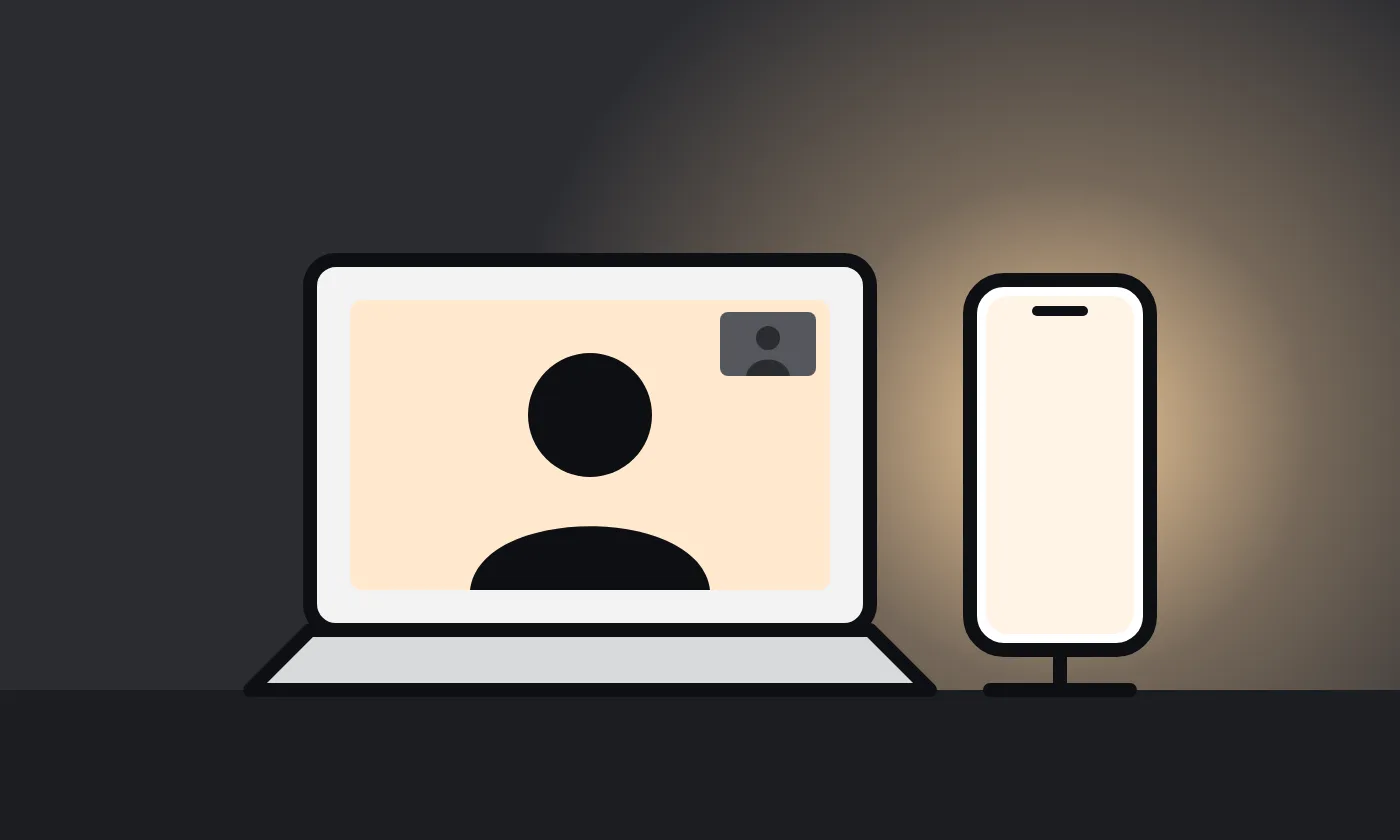
A late meeting, a desk far from the window or a room lit by one ceiling bulb can leave your face dark on camera. The webcam then raises its gain, and the picture turns grainy and flat. A screen placed close to you can add soft light to your face. It works best as a small fill light for a short call, not as a replacement for a lamp.
Put the light in front of you, not behind you
The most common problem is a bright window or lamp behind you. The camera exposes for the background, and your face goes dark. Turn so that the brightest light in the room is in front of you or to one side.
Then add the screen. Put a phone on a stand next to your laptop, at about eye level and close to the webcam. Light from slightly above eye level looks more natural than light from below the chin. Keep it within arm’s length: a phone screen has limited output, and it loses its effect quickly as you move it away.
In Ring Light Mirror, Panel fills the whole phone screen with light. Use it when the phone is only the light and the laptop camera does the filming. Ring surrounds a live mirror with light; it is useful for a quick look before you join, and you can turn the mirror off when you only need light.
Choose a tone that matches the room
A light that does not match the room can give your face one color and the background another. Under warm bulbs, start with a warm tone. Near daylight or cool office lights, try natural or cool. Your webcam and the call app also adjust white balance automatically, so make a small change and wait a moment before you judge it.
Use enough brightness, not the maximum
Start at a comfortable intensity and raise it only if your face still looks dark in the self-view. A very bright screen close to your eyes can make you squint, and it can add a harsh reflection on glasses. If you wear glasses, move the phone a little to one side and slightly higher so the reflection leaves the lenses.
Zoom, Google Meet and Microsoft Teams include brightness or low-light adjustments in their video settings on some devices. Names and availability change by app version and platform. These adjustments brighten the image in software; more light on your face usually gives a cleaner result.
A laptop screen can help too
If you have no second device, the laptop itself is already a light source. A meeting window with a dark theme sends very little light toward you. A larger white window behind the call window, or a light theme in the app, adds some light to your face. On a desktop with a second monitor, a white window on that screen can work as a wide, soft light.
Keep the camera at eye level when you can. Put the laptop on a stack of books instead of looking down into it. This changes the shadows on your face more than any brightness setting.
Selfies in a dim room
For a selfie, the same rules apply: light in front of you, close and soft. If someone else takes the photo, hold a phone in Panel below the camera line and toward your face. If you take the selfie yourself with a second device as light, put the light phone on a stand slightly above eye level. Check the color later in better light; a dim room and a warm screen can shift skin tones and makeup.
Check before the call, not during it
Open the self-view in your call app, or the online mirror with light in your browser, a minute before you join. Check that your face is lit evenly and the background is not brighter than you. Close the browser mirror before the call starts: on some computers, only one app can use the camera at a time.
When to use a lamp instead
A screen helps for short calls and quick fixes. For daily meetings, long recordings or streams, a desk lamp with a diffuser or a dedicated ring light gives more light and leaves your phone free. Read screen light versus a physical ring light when you decide whether to add equipment, and makeup in low light for a quick touch-up before the call.