
How to use your iPhone as a lighted mirror
Set up a live mirror with screen light, find a comfortable position and avoid the common mistakes that make a phone reflection harder to see.
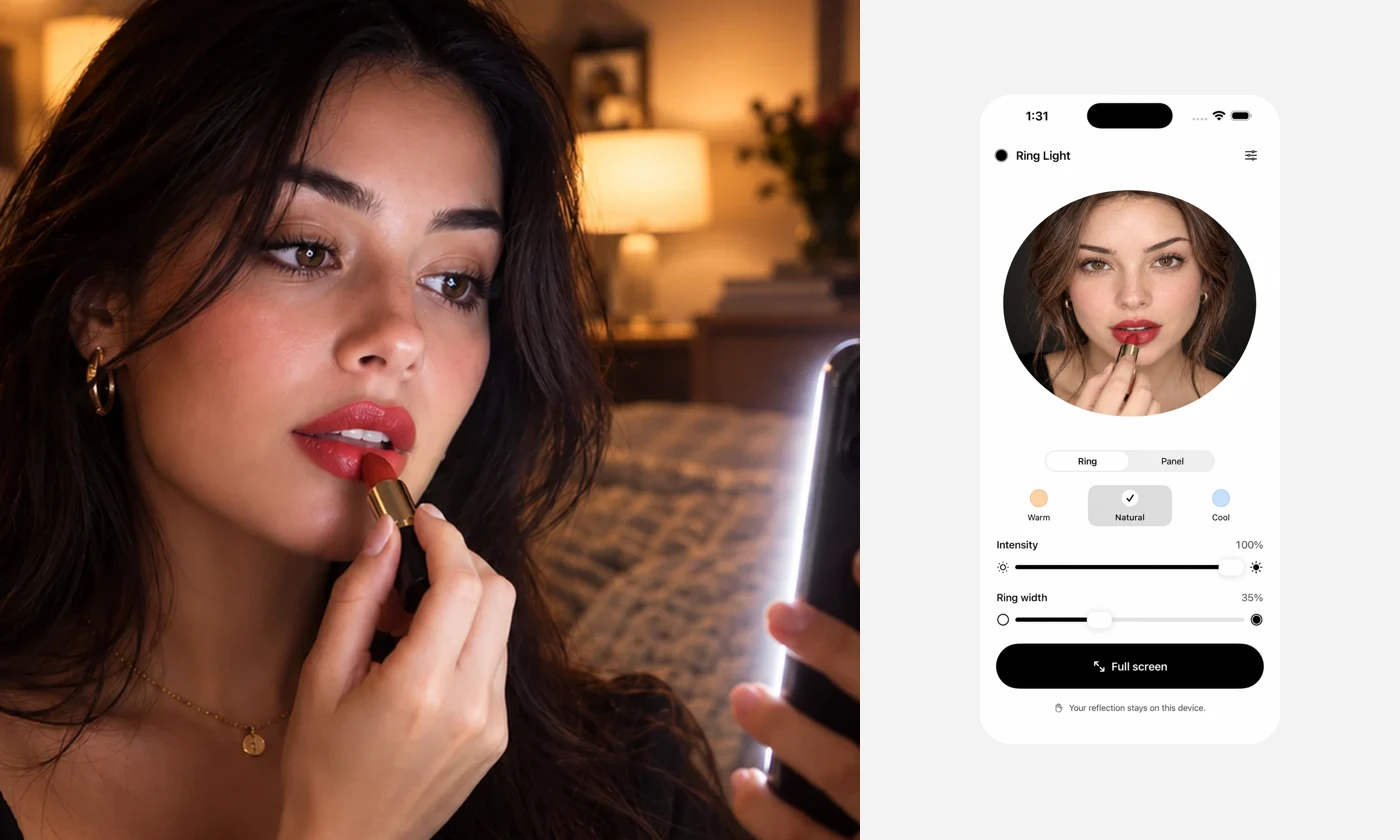
Your iPhone can act as a live mirror by showing its front camera on the screen. A lighted mirror app adds a bright area around that preview to illuminate a nearby face. It is useful for a quick makeup check in a dim room, but it is still a camera image—not a calibrated mirror.
Set up the mirror
In Ring Light Mirror, choose Ring, then enable the live mirror. Allow camera access when your iPhone asks. The permission is for the reflection; screen lighting also works without it. If you previously denied access, open your iPhone’s Settings, find Ring Light Mirror and review its camera permission.
Start with a natural tone and a comfortable intensity. There is no need to begin at maximum brightness. Increase the light only if it makes the reflection easier to see without making you squint.
Find a comfortable position
Keep the phone roughly at eye level and close enough for the screen to light your face. Adjust the distance until the preview looks useful. Bringing the camera extremely close can change the apparent proportions of your face, so avoid treating a close-up as an exact representation of how you look at a normal viewing distance.
If you need both hands, use a stable phone stand on a dry, level surface. Do not balance your phone on a sink or near an open container of water. Make sure the front camera is clean and uncovered.
Make room for the details
Adjust the ring width to change the balance between the lit area and your reflection. Pinch the mirror to zoom from 1× to 3×; double-tap to return to the default view. Zoom makes a detail larger, but does not create detail the camera could not capture.
Hide the controls when you want more room for the mirror. The app does not take photos or record video: there is no shutter or recording step to worry about.
If the reflection is too dark or grainy
Move a little closer, increase the screen light gradually or add a nearby lamp. A screen has limited output, and the front camera may show noise in poor lighting. If the reflection is washed out, reduce the intensity or move the phone slightly farther away.
Avoid placing a bright lamp directly behind you. Light falling onto your face is generally more useful than a bright background. Read our guide to comfortable screen lighting for more positioning tips.
Check color in another light
The camera, display and light tone all affect how makeup appears. A warm setting may feel pleasant, but it is not a reliable reference for matching foundation. When possible, check the result in indirect daylight before heading out.
A phone mirror is a convenient extra, not a substitute for every mirror or lighting setup. Our screen light versus ring light guide explains when dedicated lighting is the better option.